7 Proven Steps to Secure Facebook Messenger Chats with a PIN
Secure Facebook Messenger chats with a PIN using secure storage, App Lock, and recovery codes. A clear step-by-step guide for Android and iPhone users.
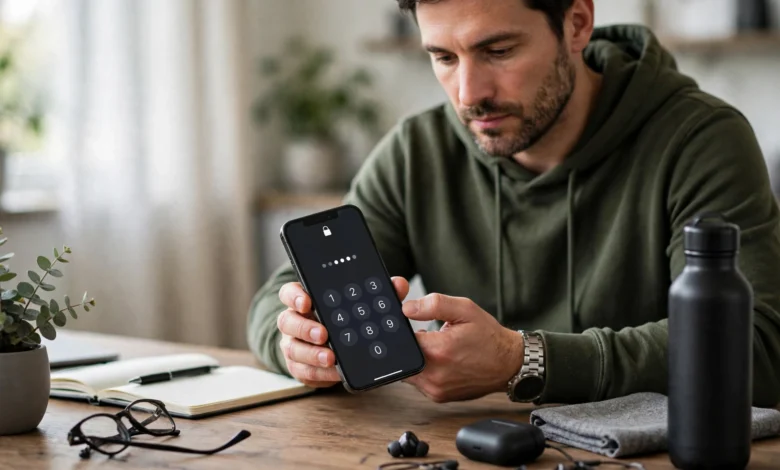
If you want to secure Facebook Messenger chats with a PIN, you are already thinking about privacy the right way. Messenger holds some of the most personal parts of our lives: family conversations, work discussions, photos, voice notes, and sometimes sensitive details like addresses or bank information. Yet most people leave the app wide open. Anyone who picks up an unlocked phone can scroll through years of messages in seconds.
The good news is that Meta has added real security tools to Messenger over the last few years. Personal chats are now end-to-end encrypted by default, which means only you and the person you are talking to can read them. To keep that encrypted history safe when you switch phones, Messenger uses a secure storage PIN. On top of that, the Messenger App Lock feature lets you require your phone’s passcode, fingerprint, or Face ID before the app opens.
The problem is that these features are scattered across different menus, and many users never set them up properly. Some forget their PIN and lose old chats. Others think a PIN locks the app itself when it actually protects their backup.
This guide clears up that confusion. You will learn exactly what the Messenger PIN does, how to create and change it, how to lock the app on Android and iPhone, and which extra settings close the remaining gaps. Each step is written in plain language so you can follow along on your own phone right now.
Why You Should Secure Facebook Messenger Chats with a PIN
Before we get into the steps, it helps to understand what you are protecting against. Messenger privacy is not only about hackers. In real life, most chat leaks happen because someone had physical access to an unlocked phone, or because an account was restored on a new device without proper protection.
Here are the main reasons to secure Facebook Messenger chats today:
- Shared or borrowed phones: Kids, partners, coworkers, or repair shops may get your phone for a few minutes. That is enough time to read private messages.
- Lost or stolen devices: A thief who gets past your lock screen should not also get your entire chat history.
- Account takeovers: If someone steals your Facebook password and logs in on their device, a strong Messenger PIN stops them from restoring your encrypted messages.
- Peace of mind: Knowing your conversations are locked lets you use the app freely without worrying about who might be looking.
What the Messenger PIN Actually Does
This is the part most articles get wrong. The Messenger PIN is not a lock screen for the app. It is a 6-digit code that protects your end-to-end encrypted chat backup, which Meta calls secure storage.


When you log in on a new phone or reinstall Messenger, the app asks for this PIN before it restores your message history. Without the correct PIN (or your recovery code), your old encrypted chats stay locked. Meta cannot read them or reset them for you, because the encryption keys are tied to your PIN.
What App Lock Does
Messenger App Lock is the feature that actually locks the app on your phone. It uses your device’s Face ID, Touch ID, fingerprint, or phone passcode to block anyone from opening Messenger, even if your phone is already unlocked. When you combine the two, you get strong protection both on your current device and on any new device.
Step 1: Update Messenger to the Latest Version
Older versions of Messenger may not show the newest privacy menus, so start here.
- Open the Google Play Store (Android) or the App Store (iPhone).
- Search for Messenger.
- Tap Update if the option appears.
- Restart the app once the update finishes.
An updated app also includes the latest security patches, which is a small but important part of keeping your account safe.
Step 2: Set Up a PIN to Secure Facebook Messenger Chats
Most users are asked to create a PIN the first time they open an encrypted chat. If you skipped that screen or are not sure whether you set one, follow these steps to secure Facebook Messenger chats with a PIN manually.
How to Create Your Messenger PIN on Android and iPhone
- Open Messenger and tap the menu icon (three lines) in the top corner.
- Tap the Settings gear icon.
- Go to Privacy & safety.
- Tap End-to-end encrypted chats.
- Select Message storage.
- Turn on secure storage if it is off.
- Choose Create a PIN, enter a 6-digit PIN, and confirm it.
Menu names can shift slightly between app versions and regions, but the path almost always runs through Privacy & safety and End-to-end encrypted chats.
Tips for Choosing a Strong PIN
A 6-digit PIN only works if it is hard to guess. Keep these points in mind:
- Avoid birthdays, anniversaries, or your phone number.
- Skip obvious patterns like 123456, 000000, or 112233.
- Do not reuse your phone unlock code or your bank card PIN.
- Store it in a trusted password manager so you never lose it.
Step 3: Save Your Recovery Code as a Backup
Messenger also offers a 40-character recovery code as an alternative way to restore encrypted messages. Think of it as a spare key. If you forget your PIN, this code is often the only way back into your chat history.
How to Find and Store Your Recovery Code
- Go to Settings > Privacy & safety > End-to-end encrypted chats > Message storage.
- Look for the option to get a recovery code or use a recovery code.
- Copy the code exactly as shown.
- Save it in a password manager or write it down and keep it somewhere physically safe.
Meta explains all of the available restore methods in its official Messenger Help Center guide on restoring encrypted chats. It is worth a quick read so you know your options before you ever need them.
Should You Use Cloud Backup Instead?
Some versions of Messenger let you save your secure storage key to Google Drive or iCloud. This is convenient, but it ties your chat security to your cloud account. If you go this route, make sure that cloud account has a strong password and two-factor authentication turned on. For most privacy-focused users, a PIN plus a saved recovery code is the safer combination.
Step 4: Turn On Messenger App Lock
Now that your backups are protected, it is time to lock the app itself. Messenger App Lock was first introduced on iPhone and later expanded to Android. Meta announced the feature in its post on Messenger App Lock and new privacy settings.
How to Enable App Lock on iPhone
- Open Messenger and tap the menu icon.
- Tap the Settings gear.
- Go to Privacy & safety.
- Tap App lock.
- Turn on Require Face ID or Require Touch ID.
- Choose when the lock kicks in: immediately, after 1 minute, 15 minutes, or 1 hour of leaving the app.
How to Enable App Lock on Android
- Open Messenger and tap the menu icon.
- Tap Settings, then Privacy & safety.
- Select App lock.
- Toggle it on and verify with your fingerprint, face unlock, or device PIN.
- Pick your preferred lock timing.
For maximum protection, set the timer to “After leaving Messenger” or the shortest option available. That way the app locks every time you switch away from it.
Step 5: Strengthen Your Phone’s Own Lock Screen
App Lock relies on your phone’s security. If your device PIN is weak, Messenger’s lock is weak too. To fully secure Facebook Messenger chats, check your phone settings:
- iPhone: Go to Settings > Face ID & Passcode and use at least a 6-digit passcode or a custom alphanumeric code.
- Android: Go to Settings > Security (or Security & privacy) and set a strong PIN, password, or pattern along with fingerprint or face unlock.
- Turn on auto-lock so the screen locks quickly when idle.
- Hide message previews on your lock screen so notifications do not reveal chat content.
Hide Messenger Notification Previews
Even a locked app can leak information through notifications. On iPhone, go to Settings > Notifications > Messenger > Show Previews and choose When Unlocked or Never. On Android, open Settings > Notifications, find Messenger, and set lock screen notifications to hide sensitive content.
Step 6: Add Extra Privacy Layers Inside Messenger
A PIN and App Lock cover the basics. These additional features help you secure Facebook Messenger chats even further.
Turn On Two-Factor Authentication
Two-factor authentication (2FA) stops strangers from logging into your account even if they get your password. Set it up in Meta Accounts Center > Password and security > Two-factor authentication. An authentication app is safer than SMS codes.
Use Disappearing Messages
For sensitive conversations, open a chat, tap the contact’s name, and turn on disappearing messages. Messages vanish after a set time, so there is less history to protect.
Review Active Sessions
Go to Accounts Center > Password and security > Where you’re logged in. If you see an unknown device, log it out immediately and change your password.
Control Who Can Message You
Under Privacy & safety > Message delivery, you can decide whether messages from strangers go to your chat list, message requests, or nowhere at all. This cuts down on spam and phishing links.
Step 7: Change or Reset Your Messenger PIN
It is smart to change your PIN if you think someone saw it, or if you simply want a fresh one.
How to Change Your PIN
- Open Settings > Privacy & safety > End-to-end encrypted chats.
- Tap Message storage.
- Select Change PIN.
- Enter your current PIN, then create and confirm a new one.
What to Do If You Forget Your PIN
If you are still logged in on your current phone, you can usually create a new PIN from the same menu without entering the old one. If you are on a new device and do not remember the PIN, use your recovery code or cloud backup. If neither is available, you may have to reset secure storage, which means older encrypted messages may not come back. This is exactly why saving a recovery code in Step 3 matters so much.
Common Mistakes to Avoid
Even careful users slip up when they try to secure Facebook Messenger chats. Watch out for these:
- Confusing the PIN with App Lock. The PIN protects backups. App Lock protects the app. You need both.
- Writing the PIN in a notes app. If your phone is compromised, so is the PIN.
- Skipping the recovery code. A forgotten PIN without a recovery code can mean lost chats.
- Leaving notification previews on. Your messages show up on the lock screen for anyone to read.
- Ignoring app updates. Older versions may lack the latest encryption and lock features.
Quick Checklist to Secure Facebook Messenger Chats
Use this short list to confirm everything is set up:
- Messenger updated to the latest version
- Secure storage PIN created and saved in a password manager
- Recovery code stored safely
- App Lock turned on with the shortest timer
- Strong phone passcode with biometrics enabled
- Notification previews hidden on the lock screen
- Two-factor authentication active on your Meta account
- Unknown login sessions removed
If you can tick every box, you have done far more than most users to protect your private conversations.
Frequently Asked Questions
Can I lock a single chat in Messenger with a PIN?
Messenger currently focuses on locking the whole app through App Lock and protecting encrypted backups with a PIN. It does not offer a separate password for each individual conversation the way some other apps do. Disappearing messages are the closest option for extra-sensitive chats.
Is the Messenger PIN the same as my Facebook password?
No. Your Facebook password logs you into your account. The Messenger PIN only unlocks your encrypted chat history on a new or reset device.
Can Meta recover my PIN?
No. Because your chats are end-to-end encrypted, Meta does not have access to your PIN or your messages. Only your PIN, recovery code, or cloud backup can restore them.
Does App Lock work on Messenger for desktop?
App Lock is designed for the mobile apps on Android and iPhone. On a computer, your best protection is a strong computer password, logging out on shared devices, and keeping 2FA turned on.
Conclusion
Learning how to secure Facebook Messenger chats with a PIN is one of the simplest ways to protect your private life online. The secure storage PIN keeps your end-to-end encrypted chat history safe when you switch devices, while Messenger App Lock stops anyone from opening the app on your current phone. Pair those with a saved recovery code, a strong phone passcode, hidden notification previews, and two-factor authentication, and your conversations become very hard for anyone else to reach. It takes about ten minutes to set everything up, and once it is done, you can message friends, family, and colleagues with real confidence that your chats stay yours.